
PS5 Safe Mode Fixes That Actually Work
Your PS5 should boot straight to the home screen. If it keeps landing in PS5 Safe Mode, something has gone sideways with system software, storage, display settings, or power recovery. The good news is that Safe Mode is not a death sentence for your console. Sony built it as a repair menu, and most fixes take only a few minutes if you choose the right option in the right order.
The bad news? Picking the wrong option can wipe your data. That is why you should slow down before pressing “Reset PS5.” I have covered enough console failures to know the pattern. Panic causes more damage than the original glitch. Here is the practical order to follow, based on Sony’s Safe Mode tools and the BGR guide linked in the source.
What To Try First
- Start with Restart PS5 before changing settings or touching storage.
- Check cables and power if Safe Mode appears after an outage or hard shutdown.
- Use Rebuild Database when games crash, icons vanish, or storage acts strange.
- Avoid Reset PS5 unless you have backed up your saves and settings.
- Use a USB update if your console cannot install system software online.
What Is PS5 Safe Mode?
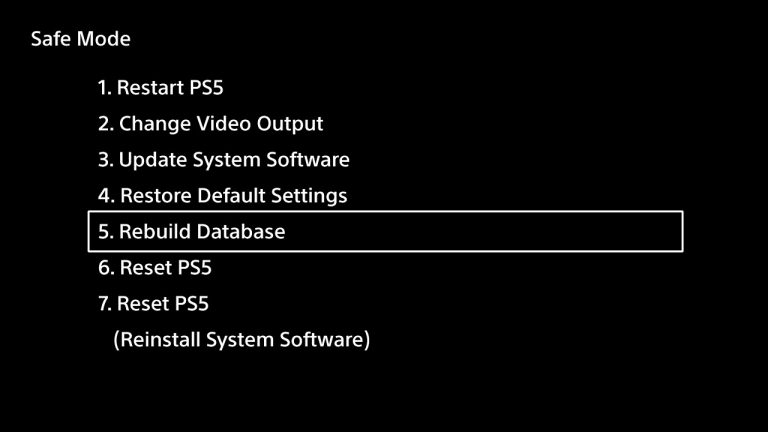
PS5 Safe Mode is a stripped-down repair menu that starts the console with only basic functions running. It gives you tools to restart the system, change video output, update software, repair storage, clear cache, rebuild the database, or reset the console.
Think of it like a pit stop in racing. You are not there to enjoy the ride. You are there to fix a problem fast, without taking the whole machine apart.
Safe Mode is useful because it separates system repair from the normal PS5 interface. If the main interface is crashing, freezing, or failing to load, this menu can still give you a way back in.
You may see Safe Mode after a power cut, failed update, corrupted storage index, bad HDMI handshake, or repeated crash. Sometimes it appears once and never returns. If it loops every time you start the console, you need a more careful fix.
How To Get PS5 Out Of Safe Mode Without Losing Data
Start with the least destructive options. That sounds obvious, but the Safe Mode screen puts several choices in front of you, and some are far more aggressive than others.
- Select Restart PS5. This exits Safe Mode and tries a normal boot. If the console starts properly, you are done.
- Power cycle the console. Turn off the PS5, unplug the power cable for at least 60 seconds, then reconnect it and start again.
- Check HDMI and power cables. Use a direct wall outlet if possible. Avoid a flaky power strip while troubleshooting.
- Update system software. Choose the internet option first if your connection works.
- Clear cache and rebuild database. This fixes many performance and storage issues without deleting games or saves.
Do not start with a factory reset.
That single choice can erase local data, and it should sit near the bottom of your list. If you use PlayStation Plus cloud saves, check that your saves are synced before doing anything drastic (if you can access the console normally at any point).
PS5 Safe Mode Options, Explained In Plain English
The menu can look more technical than it really is. Here is what each major option does and when you should use it.
Restart PS5
This is the clean exit. Use it first every time. If your PS5 entered Safe Mode after one bad shutdown, this may be all you need.
Change Video Output
Use this if your screen is black, flickering, or showing the wrong resolution. A TV firmware update, new HDMI cable, or capture card can trigger weird display behavior. Setting the resolution lower can get the picture back.
Update System Software
This installs the latest PS5 system update through the internet or a USB drive. Pick this if Safe Mode appeared after a failed update, or if the console says system software cannot start.
Restore Default Settings
This resets system settings without deleting your games, apps, screenshots, or saved data. Use it if a setting change seems to have broken display, network, or system behavior.
Clear Cache And Rebuild Database
This is the workhorse option. Clearing cache removes temporary files. Rebuilding the database scans the drive and reorganizes how the PS5 tracks content. It is a solid fix for missing icons, slow menus, download oddities, and game library weirdness.
Reset PS5
This restores the console to factory settings and deletes user data. Use it only after safer tools fail, or before selling the console. Back up first if you can.
Reset PS5, Reinstall System Software
This is the last resort. It wipes the console and reinstalls the operating system from a USB drive. Use it when the internal system software is badly damaged and normal updates do not work.
How To Rebuild The Database In PS5 Safe Mode
If your PS5 gets stuck, slows down, or shows library errors, Rebuild Database is often the smartest middle step. It does not delete your installed games or saves, but it can take time if you have a packed drive.
- Turn off the PS5 completely. Do not use Rest Mode.
- Hold the power button until you hear a second beep. The second beep usually comes after about seven seconds.
- Connect the DualSense controller with a USB cable.
- Press the PS button on the controller.
- Select Clear Cache and Rebuild Database.
- Choose Rebuild Database.
- Wait for the process to finish, then let the PS5 restart.
What if it takes longer than expected? Wait. Interrupting storage repair can make the next boot worse. If the console freezes for a very long time, then you may need to power cycle and try an update or USB reinstall.
How To Update PS5 System Software From Safe Mode
A failed firmware update is one of the more common reasons a PS5 gets trapped in Safe Mode. If your internet connection is stable, choose Update System Software, then use the online update option.
If that fails, use a USB drive. You will need a computer, a USB drive formatted as FAT32 or exFAT, and the current PS5 update file from Sony’s official PlayStation support site. Create the folder path exactly as Sony requires, usually PS5 > UPDATE, then place the update file inside that folder.
Small detail, big headache: the file name must be correct. If the PS5 cannot find it, check the folder names, drive format, and whether you downloaded the update file rather than the full reinstall file.
Why Your PS5 Keeps Booting Into Safe Mode
If the console returns to Safe Mode after every restart, look for a repeat cause. One-off software hiccups happen, but loops point to a deeper fault.
- Power loss: Sudden shutdowns can corrupt temporary system files.
- Failed update: The console may be unable to load incomplete system software.
- Storage trouble: A corrupted index can make the PS5 lose track of installed content.
- External drive issues: A bad USB storage device can cause boot problems.
- Display handshake problems: HDMI devices, splitters, or receivers can confuse video output.
Try unplugging external USB drives before booting. If the console starts normally, repair or reformat that drive through the PS5 settings before trusting it again.
When PS5 Safe Mode Means You Need Sony Support
Safe Mode can fix software trouble, but it cannot repair failing hardware. If your PS5 shuts off during repairs, makes unusual clicking sounds, overheats quickly, or cannot reinstall system software from USB, stop repeating the same steps.
That is when you check warranty status and contact PlayStation Support. Repeating resets on a console with a failing internal drive or power issue wastes time and risks more data loss.
My rule after years of covering consumer tech: if three careful software fixes fail, treat the problem as hardware until proven otherwise.
You should also avoid third-party repair guesses if the system is still under warranty. Opening the console can complicate support, and most Safe Mode loops do not require a screwdriver.
The Smart Order For PS5 Safe Mode Repairs
Here is the order I would use on my own console. It protects your data while still moving toward stronger fixes if the easy ones fail.
- Restart PS5.
- Power cycle and check cables.
- Disconnect external drives and accessories.
- Change Video Output if the screen is the issue.
- Update System Software online.
- Clear Cache and Rebuild Database.
- Update from USB using Sony’s official file.
- Restore Default Settings.
- Reset PS5 only after backups.
- Reinstall system software only as a final step.
The temptation is to jump to the biggest hammer. Resist it. A PS5 Safe Mode loop often comes down to a damaged update, messy storage index, or one bad accessory, and those are fixable without wiping your console.
What I’d Do Next
If your PS5 is sitting in Safe Mode right now, choose Restart PS5, then rebuild the database if it comes back. If the loop continues, move to a USB system update before any reset. And if that still fails, ask the hard question: are you fixing software, or is the console trying to tell you the hardware is done?